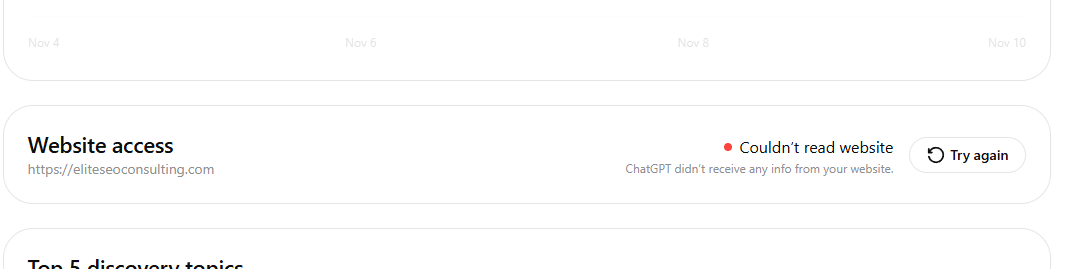
You claim your business in ChatGPT, confirm the website, and expect OpenAI’s Business Hub to read your pages. Instead, the dashboard reports “Couldn’t read website” or “ChatGPT didn’t receive any info from your website.” Your homepage opens normally, your WordPress site looks fine, and you may even be ranking in Google. So why is the dashboard failing?
We faced this precise problem on Elite SEO Consulting’s own site on November 11, 2026. The issue turned out to be a server-level hosting rule, not a broken homepage. This walkthrough documents our investigation, the key evidence, the resolution, and a practical checklist for owners using other hosts.

What “Couldn’t Read Website” Actually Means
The warning means the Business Hub website-access check couldn’t get usable information from your site. It does not by itself identify the cause. Possibilities include a firewall denial, blocked automated traffic, inaccessible pages, DNS or TLS problems, redirects, server errors, or a transient issue. It also should not be confused with business ownership verification or Persona identity verification, which are separate steps.
OpenAI introduced Businesses in ChatGPT in beta on November 10, 2026. Business Hub lets eligible businesses claim a listing, manage approved information, and view available engagement insights after required approvals. The website-access indicator is useful technical feedback, not a promise about how often the business will be mentioned in independent ChatGPT answers. Read the official business setup guidance and the launch announcement for the current product requirements.
Step 1: Verify You Entered the Correct Public Website
Start with the least expensive checks. Confirm that Business Hub displays the real canonical domain, not a temporary development URL, an inaccessible staging site, a typo, an outdated hostname, or an HTTP endpoint. Open the exact address in a private browser window. Check both the homepage and a representative service page, then confirm the final address after any redirects.
A browser showing the website is a starting point, not a final answer. Your browser may have cookies, an approved connection, or a human-user reputation that the Business Hub reader does not share.
Step 2: Check robots.txt Without Replacing Existing Rules
Visit https://yourdomain.com/robots.txt and check whether the file loads. Review rules for OpenAI’s documented agents, particularly OAI-SearchBot for ChatGPT Search. Do not confuse it with GPTBot, which concerns model training, or ChatGPT-User, which is used for certain user-triggered retrieval. OpenAI’s crawler reference explains these distinctions.
Pay attention to broad Disallow: / rules, but do not assume every Business Hub retrieval uses the same crawler as ChatGPT Search. The Business Hub error alone does not disclose the identity or IP address of its reader. Nor does a normal robots.txt response prove that the homepage is accessible.
Step 3: Look for HTTP 403 and Other Responses
Open the host’s access or security logs around the time you clicked Try again. For cPanel-based hosting, the path is often Metrics → Errors and Metrics → Raw Access. The former may show error details; the latter is useful for status codes, requested paths, and user-agent strings. Neither necessarily records requests blocked upstream.
| Code | Likely explanation | Action |
|---|---|---|
| 200 | The request succeeded | Confirm actual useful content came back |
| 301/302 | A redirect occurred | Follow to final destination and inspect loop/host changes |
| 403 | Access forbidden | Check ModSecurity, WAF and bot blocking |
| 429 | Requests throttled | Review rate limits and challenge rules |
| 5xx | Origin or proxy error | Investigate server stability and provider logs |
What Our Error Log Showed
Our cPanel Errors screen contained repeated entries like File not found [/home/eliteseo/public_html/403.shtml]. This shows the server attempted to serve a custom 403 error page that was absent. It did not, by itself, establish why any request was forbidden. The more useful clue came from an access-log sample: a crawler-identifying request to robots.txt got 403 while a browser-identifying request from the same IP shortly afterward received 200.
That pattern was consistent with filtering based on request identity. It wasn’t proof that OpenAI was specifically denied, but it gave us a focused question for the host.
Step 4: Check Host-Level ModSecurity and Bot Protection
In cPanel, ModSecurity may not appear as a switch that the site owner can change. That is because shared hosts can enforce rules before the request reaches WordPress. On other hosting stacks, investigate Cloudflare, a CDN, a web application firewall, Wordfence or another security plugin, a reverse proxy, and server-level rate limiting.
Do not disable the firewall wholesale. Ask which rule blocks which legitimate traffic, and whether the host can issue a limited exception based on verified bot origin and purpose. If a legitimate crawler is being denied at the server perimeter, tweaking an SEO plugin cannot fix that layer.
The Support Message That Gets to the Point
Our ChatGPT Business Hub reports “Couldn’t read website” for https://yourdomain.com. The public site works in a normal browser. Please inspect server-wide ModSecurity, WAF, CDN and bot-protection logs around our latest retry. Check requests to the homepage and robots.txt, including verified OpenAI crawler or retrieval traffic, HTTP 403/429 responses, and any blocked security rule IDs. If legitimate requests are being denied, please apply a narrow exception without disabling general protection. Please confirm what was changed and which crawler identities it covers.
Step 5: Our Fix and Before/After Confirmation
Several crawlers were blocked by default on its shared hosting servers through a server-wide ModSecurity ruleset. Support said it whitelisted the relevant rules for our account, so ChatGPT/OpenAI requests should succeed. After that adjustment, we used Business Hub’s own retry control.
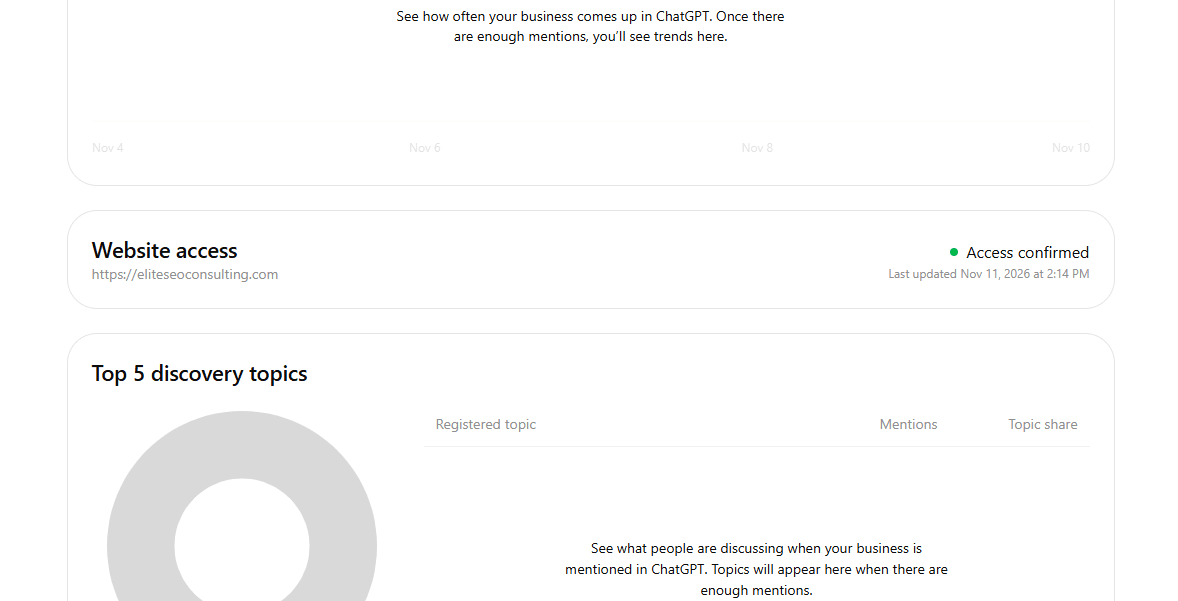
The indicator changed from “Couldn’t read website” to “Access confirmed.” This is stronger evidence than a simulated crawler request alone: the actual Business Hub check succeeded. It is still not a guarantee of future crawl reliability, search citations or higher placement.
Step 6: Retest Individual Crawlers, Not Just Business Hub
Our follow-up checks used Windows PowerShell and different user-agent strings. Simulated requests for OAI-SearchBot, ChatGPT-User, and Googlebot returned HTTP 200 for the homepage and robots.txt. ClaudeBot and PerplexityBot returned 403 for the homepage, though their robots.txt requests returned 200. Separate tests using Claude-SearchBot and Perplexity-User returned 200 for the homepage.
That demonstrates why the question “Are AI bots allowed?” is too broad. Each agent can have different access. More importantly, these tests were requests from our computer impersonating crawler user-agent strings; the results are not equivalent to authenticated requests from those companies’ infrastructure.
For the full five-crawler PowerShell script and diagnostic screenshots, see our companion article, Can AI Read Your Website? Test ChatGPT, Claude, Perplexity & Google Crawlers. For confirmed crawler identity, compare server logs with official provider IP ranges and ask your host for upstream WAF details.
Why the Discovery Topics Dashboard Might Still Be Blank
After we confirmed website access, the Business Hub panel for Top 5 Discovery Topics still displayed a placeholder indicating that topics would appear after enough mentions. That is not evidence of another website-read failure. OpenAI says Business Hub insights provide aggregated activity, including available mentions, clicks, and discovery topics over a recent period. Reports may require sufficient data and do not capture every possible form of brand visibility.
Consider the distinction: accessibility means a relevant service can obtain content; visibility means the business is surfaced or referenced in a particular context; results mean real prospects take actions that matter to revenue. The three must be measured separately. For context, explore our AI Search Optimization program.
A Practical Troubleshooting Checklist
- Copy the exact Business Hub warning and record the time.
- Confirm the domain and that the homepage is publicly accessible.
- Retrieve robots.txt and review relevant crawler restrictions.
- Inspect redirects, error responses and any challenge pages.
- Check cPanel access logs, server errors, CDN and WAF analytics.
- Ask the host to investigate upstream ModSecurity blocks if evidence points there.
- Use a scoped exception for legitimate crawlers rather than turning off security.
- Click Try again in Business Hub and save the result.
- Retest key crawlers individually; verify real-origin traffic separately.
- Keep screenshots, timestamps and support responses for future audits.
Frequently Asked Questions
Why can’t ChatGPT Business Hub read my WordPress website?
Possible causes include host firewalls, bot filtering, redirects, robots rules, network errors or transient fetch failures. The warning does not identify the cause without further testing.
Will changing robots.txt fix a 403 from ModSecurity?
Not if ModSecurity blocks the request before it reaches the site. Ask the host to inspect and adjust the specific security rule.
Does “Access confirmed” mean my business will appear more often in ChatGPT?
No. It confirms the Business Hub check successfully accessed the website. Search recommendations depend on other systems and are not guaranteed.
Do I need a verified Business Hub profile to fix crawler access?
No. Crawling and site security can be evaluated independently. Claiming and identity verification control profile management and access to insights.
How long should I wait after a hosting change?
Try the Business Hub retry when the host says the exception is active. Some platform behaviors and robot updates may take longer; if it fails, record the exact request time and ask support to check the logs again.
We Can Diagnose the Technical Barrier Before It Costs You Discovery
Our team at Elite SEO Consulting works on both traditional SEO and AI search accessibility. We can evaluate website access, coordinate with hosting, help identify the correct crawler policy, and connect technical findings to practical visibility and lead-generation priorities. Contact Elite SEO Consulting or call 719-474-9404 to discuss a ChatGPT Business Hub issue or a broader AI search audit.
Elite SEO Consulting is an independent agency and is not affiliated with or endorsed by OpenAI.